
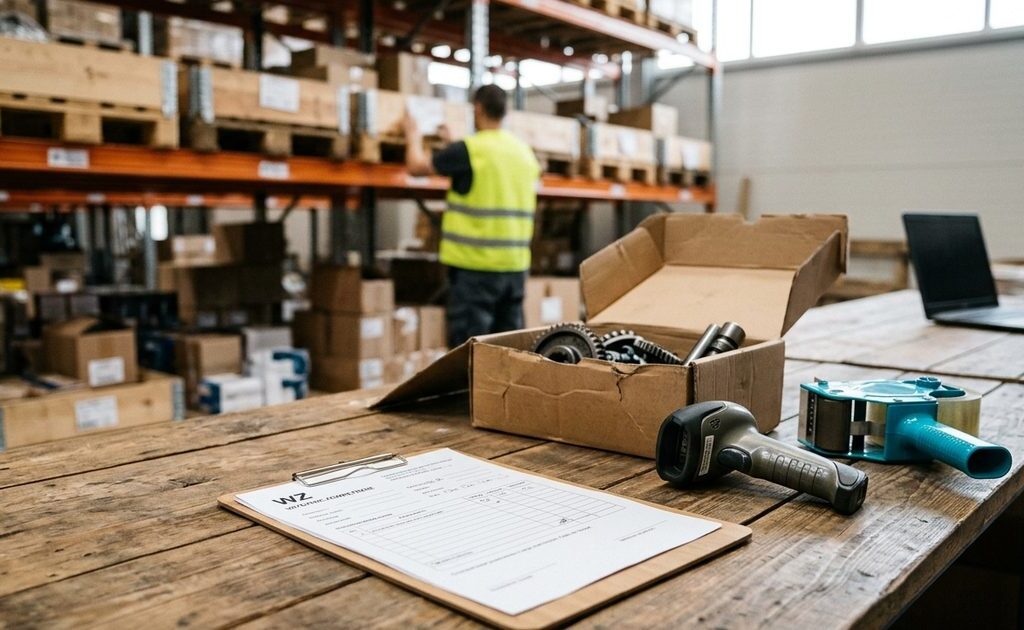
KSeF, Poland’s National e-Invoicing System, has solved one problem: KSeF purchase invoices all arrive in one system, and software integrated with it can download them on its own. A second problem remains. Before your company pays a supplier, an employee has to make sure that the invoice matches what you ordered and what actually arrived. If checking one invoice takes 6 minutes, 400 invoices a month add up to 40 hours, or one person’s working week.
Software can take on much of this work. We explain how to download invoices from KSeF, how software compares an invoice with a purchase order and a goods dispatch note (WZ, the supplier’s document for goods issued), where discrepancies tend to arise, and when this kind of automation pays off and when it does not.
How do you download purchase invoices from KSeF?
Since 1 February 2026, businesses have been receiving invoices through KSeF. You can receive them in two ways: through free tools provided by the Polish Ministry of Finance or through accounting software integrated with KSeF. The first option includes the KSeF Taxpayer Application, the KSeF Mobile Application and the e-Mikrofirma service in the e-Urząd Skarbowy (e-Tax Office). Both options are described in the Ministry of Finance guide to receiving invoices (in Polish).
Your choice depends mainly on how many invoices your business receives. For a few invoices a month, the Ministry’s tools are enough. For dozens or hundreds, an employee would have to download documents from the KSeF Taxpayer Application every day and transfer them to your accounting software. At that point, it is easier to let the software download invoices from KSeF automatically.
Whichever option you choose, regular checks matter. An invoice is considered received on the day KSeF assigns it a KSeF number, not when an employee downloads or opens it. This means an invoice may already count as received even though no one in your business has read it yet. The Ministry of Finance recommends checking regularly whether your suppliers have submitted new invoices, as this affects payment deadlines.
However, downloading from KSeF regularly does not mean that every purchase invoice will arrive this way. Until the end of 2026, a supplier can issue invoices outside the system if their sales covered by those invoices do not exceed PLN 10,000 gross per month. If a supplier issues an invoice in offline or emergency mode, it may also arrive first as a PDF or a printout with a QR code and only enter the system later. You can find the details in the Ministry of Finance’s KSeF questions and answers (in Polish). Your purchase invoice workflow therefore needs to handle both channels: invoices from KSeF and documents that arrive by other means, such as email.
How do you download invoices from KSeF automatically: your ERP system or a custom integration?
An ERP system integrated with KSeF is enough if you only need invoices to enter it as purchase documents. A custom integration makes sense when invoice data needs to go further: to a custom-built system, to several systems or into checks against purchase orders.
What your ERP system does
Systems integrated with KSeF usually do more than download invoices: they also create purchase documents from them. In Comarch ERP Optima 2026.5, a downloaded invoice is transferred to the Trade (Handel) module as a purchase invoice (FZ). The Comarch ERP Optima documentation (in Polish) describes this process.
When you transfer the document, however, some items may not match your item master (the list of goods in your ERP). If the software cannot find a matching item, it suggests creating a new item record or selecting an existing item. A member of staff then has to work out which item in the item master the supplier means. This is the first point where manual work remains.
Exactly what your system does depends on the product, version and licence. This determines whether its features are enough or whether an additional connection to your ERP would help with further invoice checks.
A custom integration through the KSeF API
A custom integration between KSeF and a custom-built system delivers invoices to the system your team works in. Here is how downloading invoices from KSeF works, step by step:
- Your company decides who has permission to receive invoices. It can authorise more than one person.
- The system connects to KSeF using a token that only allows it to read invoices. The token’s permissions cannot be changed later, and the token itself must be protected like a password.
- The system regularly downloads new invoices to its own database. Staff search for them there, not in KSeF. The KSeF 2.0 API documentation (in Polish) describes this approach.
- The system takes request limits into account. If these are exceeded, KSeF temporarily blocks further requests. Download limits are higher between 20:00 and 6:00, so larger downloads can be scheduled overnight.
- The downloaded XML files enter the invoice workflow and are passed on for checking against orders.
The Ministry of Finance provides API documentation, a test environment and libraries for .NET and Java. Your developer does not have to start from scratch, but you still need to build your company’s invoice workflow yourself.
How do you match a KSeF purchase invoice against the order and the WZ?
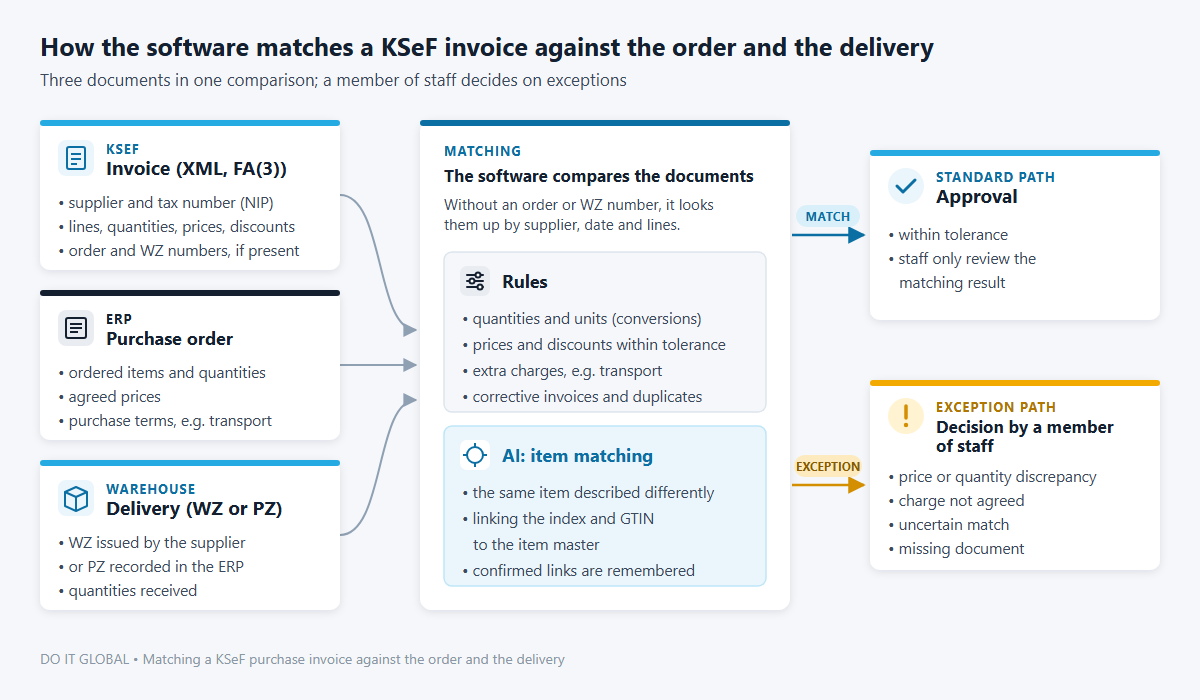
Downloading an invoice does not tell you whether your company should pay for every line on it. Software can check this by matching the invoice against the order and the delivery, a process known as three-way matching. However, it needs data that let it link these documents.
Which FA(3) invoice data helps with matching?
Since 1 February 2026, purchase invoices from KSeF have been XML files in the FA(3) structure, the format that Polish structured invoices must follow. Software reads the data directly, without retyping or OCR. The WZ field, which holds the goods dispatch note number, and the element containing the order number and date help it find the right documents. Each invoice line may also include Index, the supplier’s own item code, and GTIN, the equivalent of the EAN barcode number. These fields are described in the Polish Ministry of Finance’s brochure on the FA(3) structure (in Polish).
All these fields are optional: some suppliers fill them in, while others do not. Index is not a code from your item master, so you need to link it to your own item once. When the data identifying the order are missing, the software searches by supplier, date and line items, and flags uncertain matches for a member of staff.
Comparing the invoice, order and delivery
Once it has found the documents, the software checks whether the invoice matches both what your company ordered and on what terms, and what it actually received. The delivery is confirmed by the WZ issued by the supplier when the goods were dispatched, or by a goods receipt note (PZ, your own record of goods taken into the warehouse) entered in your ERP when your company receives the goods. Depending on how your company works, the software compares the invoice against one or the other.
| What we check | Data from the FA(3) invoice | Data from the ERP | When data are missing from the invoice |
|---|---|---|---|
| Supplier | Seller details, including tax number (NIP) | Counterparty records | Every invoice includes the seller’s details. |
| Order | Order number and date | Purchase order | The software searches by supplier, date and line items; a member of staff confirms any uncertain match. |
| Delivery | WZ number | Supplier’s WZ or the PZ | The software searches for goods receipts from that supplier around the same date. |
| Item | Name, Index, GTIN | Item master and order lines | The software compares names; a member of staff confirms the link, and the software remembers it. |
| Quantity and unit | Quantity and unit of measure | Quantity received, unit conversion factors | The software converts units using the agreed conversion factors. |
| Price | Unit price, discount | Price on the order | A member of staff sees any difference above the agreed tolerance. |
| Additional charges | Separate line items, such as transport | Order or contract terms | A member of staff investigates any charge that has not been agreed. |
The software checks quantities and amounts against rules, allowing for a tolerance set by your company, for example for rounding. AI helps identify the same item when the supplier describes it differently from your company. Uncertain matches go to a member of staff together with the comparison results: matching lines, discrepancies and missing documents. That person makes the decision, but no longer needs to check every line manually.
Where do discrepancies most often arise?
Not every difference is an error. Rules can handle most recurring discrepancies. A member of staff decides what to do when the documents do not give a clear answer.
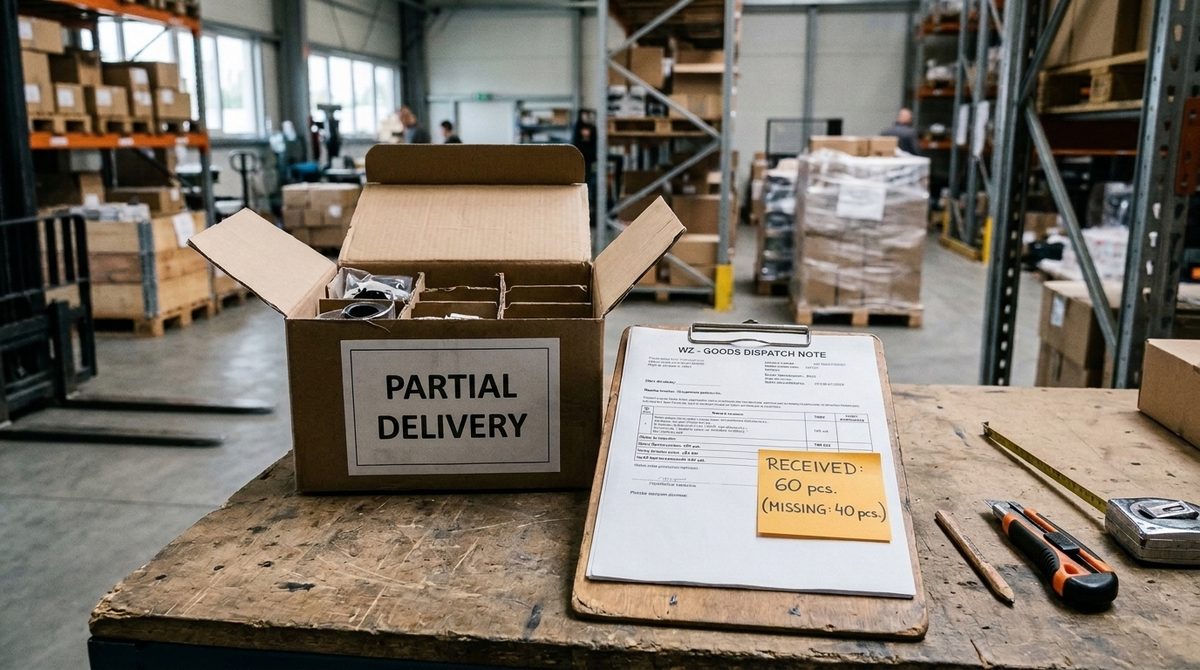
This happens with partial deliveries. You ordered 100 units, and the supplier delivered and invoiced 60. The invoice is correct, although the order remains open. The software keeps track of the quantities already accounted for, so the next invoice does not lead to a second payment for the same delivery. One invoice can also cover several WZ documents or orders: the software matches its line items to the relevant documents. The FA(3) structure allows an invoice to reference up to 100 orders.
A different item code or name can stop the matching process: the supplier describes the product differently from your company. A member of staff confirms the link once, and the software remembers it and automatically matches the item on subsequent invoices from that supplier.
The same applies to units of measure. If the supplier invoices in cartons but your warehouse receives individual units, you only need to set the conversion factor once for the software to compare quantities.
For prices and additional charges, a rule checks whether the difference follows from the purchase terms, such as a discount or an added transport charge. A member of staff follows up any charge that was not agreed with the supplier.
An invoice in KSeF cannot be changed. The supplier therefore issues a corrective invoice and gives the KSeF number of the original invoice. There may be several corrective invoices for one invoice; the software links them to the original document and shows the current amount due.
The software also checks for duplicates. When a supplier issues an invoice in offline mode or emergency mode, they may send a PDF before the invoice reaches KSeF. The software recognises the same document by its invoice number and supplier details, so you do not pay twice.
Sometimes, however, there is nothing to match the invoice against. For energy, rent or subscriptions, you do not issue purchase orders, and the supplier does not issue WZ documents. Such invoices from KSeF, known as expense invoices, follow a separate path in the expense invoice workflow: the person responsible for the cost approves them.
How much time does manual invoice checking take, and when does automation pay off?
Two companies may receive the same number of invoices. In one, the documents usually match the orders. In the other, staff are constantly calling suppliers to resolve differences in prices or quantities. Automation saves the most time in the second company.
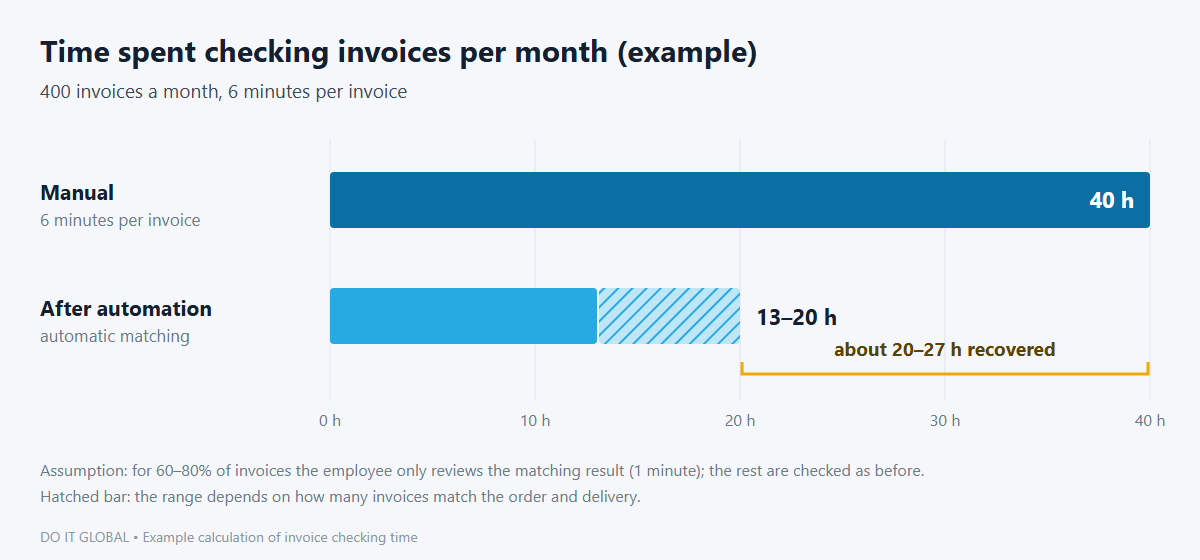
You can make an initial estimate of the potential savings. Here is a worked example based on assumptions, not an implementation result: 400 invoices a month and 6 minutes to check each invoice gives the 40 hours mentioned earlier. If reviewing 60–80% of invoices after automatic matching takes one minute each, while the rest take as long as before, the team gets back about 20–27 hours a month. At £15 an hour, that is about £300–£400.
The hours saved translate into financial savings when the company avoids hiring another person or pays less overtime. The team can also do work it currently has no time for. When assessing whether automation pays off, you subtract implementation and maintenance costs from the benefits.
Automating matching alone is usually not worthwhile if you receive only a few dozen invoices a month, suppliers’ invoices usually match, or most costs have no associated orders. However, the project can also cover the workflow and approval of expense invoices. The connection to KSeF and your software is then built once, with its cost spread across several improvements.
The ERP provider can do some of the work. In the browser version of Comarch ERP Optima, Comarch’s AI agent “Weryfikator e-Faktur” (e-invoice verifier) checks the invoice issuer’s credibility: whether it appears in the GUS business register (Statistics Poland) and your counterparty records, its VAT status, whether its bank account is on the VAT white list (the official register of VAT taxpayers and their bank accounts), and whether that account has changed since previous invoices. This is described in the documentation for AI agents in Comarch ERP Optima (in Polish). Matching the invoice against the order and delivery is a separate step. What your software does during that comparison depends on its version and licence.
If you do not know how much time your team spends comparing documents and resolving differences, process analysis will show you, using your company’s data.
Frequently asked questions
Will my ERP system match a KSeF invoice against the order automatically?
That depends on the system, its version, your licence and any add-ons you have purchased. Systems integrated with KSeF download invoices and use them to create purchase documents. Software providers are also adding checking functions.
For example, Comarch offers the AI agent “Weryfikator e-Faktur” in ERP Optima from version 2026.5 and in ERP XL from version 2026.1. Before a purchase invoice is posted, the agent checks the issuer’s credibility, including its VAT status and whether its bank account is on the VAT white list.
As these functions vary between systems, we check what your system already does before we provide a quote, and build only the missing step.
Do you need AI to check invoices?
Not always. Software uses rules to check amounts, quantities and prices: it compares the figures on the invoice with the order and the goods received, allowing for the tolerance set by your company.
AI is useful when a supplier describes goods differently from the way you describe them in your item master, or when a document arrives outside KSeF, for example as a scan. A member of staff approves any matches the software is unsure about.
Do KSeF invoices need to be read using OCR?
No. A KSeF invoice is an XML file that follows the FA(3) structure, and bulk downloads from KSeF are available only in XML. The software reads the data directly from the file. OCR or AI is useful only for documents received outside KSeF, such as scans.
What happens to expense invoices without an order?
KSeF expense invoices without orders, for example for energy, rent or subscriptions, follow a separate workflow. The software assigns the invoice to the person or department responsible for the cost. The designated person approves it, and the accounts team codes it, that is, assigns it to ledger accounts.
Rules can handle some of this work. When an invoice comes from a regular supplier and the amount is similar to previous months, the software routes it straight to the right person.
Where is invoice data processed, and who has access to it?
We agree with you where data will be processed and who will have access before we connect the systems. We connect to KSeF using a token with read-only access to invoices. Its permissions cannot be extended later: any change requires a new token to be issued. We protect the token like a password.
If the solution uses an AI model, we agree the terms of its use with you. Data can also be processed within your company’s infrastructure.
What can you do next?
If you would like to see how this kind of checking could work in your company, you can find a description of our service on our page about matching KSeF invoices with orders and WZ.
You can also arrange a free conversation with us online, lasting 30–45 minutes. You tell us how your team currently checks invoices and which software it uses, and we explain what could be improved in that software and where to start. There is no obligation.